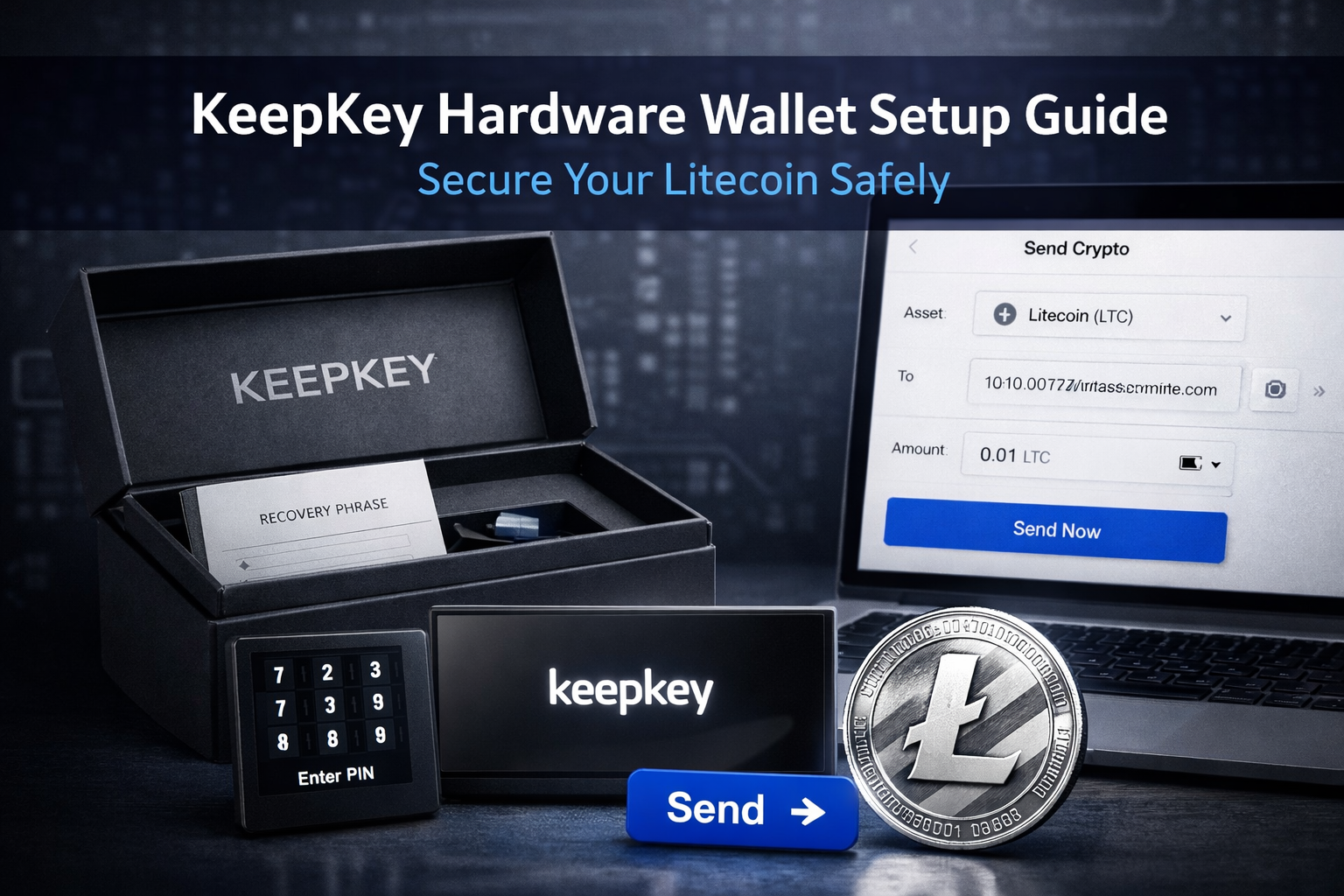
If you are serious about securing your cryptocurrency, a hardware wallet is one of the safest options available.
In this guide, we will unbox, install, and set up the KeepKey hardware wallet, then send a Litecoin test transaction from Coinbase to confirm everything works correctly.
This step by step tutorial will help you confidently install your KeepKey wallet, upgrade firmware, secure your recovery phrase, and transfer crypto safely.
Why Choose a Hardware Wallet Like KeepKey?
Hardware wallets store your private keys offline. That means your crypto remains protected from malware, phishing attempts, and online hacks.
Compared to software wallets, a hardware wallet:
- Stores private keys offline
- Requires physical confirmation for transactions
- Uses PIN protection
- Provides a recovery phrase for backup
If security matters to you, this is essential.
Unboxing the KeepKey Wallet
The KeepKey arrives in a premium magnetic box with tamper evident packaging. The presentation feels secure and thoughtfully designed.
Inside the box you will find:
- The KeepKey device
- USB cable
- Recovery phrase card
- Instructions and warranty information
Compared to the Ledger Nano S, the KeepKey is noticeably larger and heavier. It feels robust and durable, although it may not fit as easily into smaller storage containers.
The packaging quality gives an added sense of confidence that the device has not been tampered with.
Important: Always purchase hardware wallets from trusted retailers or directly from the manufacturer.
Installing the KeepKey Client Software
To begin setup:
- Plug the KeepKey into your computer.
- Visit the official KeepKey get started page.
- Download and install the KeepKey client.
- Open the application.
During installation, you will be prompted to:
- Unplug and replug the device
- Hold the device button while reconnecting
- Upgrade firmware
The firmware upgrade process is straightforward and intuitive.
Setting Up Your KeepKey Wallet
1. Create a Device Label
You can personalize your device by assigning it a label such as:
Chris_KeepKey
This is optional but helpful if you manage multiple wallets.
2. Set a Secure PIN
The PIN entry screen is scrambled for security. The numbers displayed on your computer are arranged differently from standard number order.
This prevents keylogging attacks because someone watching your screen cannot easily determine your PIN.
Enter your PIN twice to confirm.
3. Write Down Your 12 Word Recovery Phrase
The KeepKey generates a 12 word recovery phrase. This is your backup.
Unlike some devices that generate 24 words, KeepKey uses 12 words, making it slightly faster to record.
Critical security rule:
- Write the words down on paper
- Never store them digitally
- Never share them with anyone
- Store them in a safe location
If you lose your device, these words are the only way to recover your funds.
Adding a Litecoin Account
After setup is complete, you can add cryptocurrency accounts.
For this tutorial, we add Litecoin.
- Click Add Account
- Select Litecoin
- Name the account if desired
- Confirm creation
You can also add Bitcoin, Ethereum, and other supported assets.
Receiving Litecoin on KeepKey
To receive Litecoin:
- Open your Litecoin account in KeepKey.
- Click Receive.
- The device will generate a public address.
- Confirm the address directly on the device screen.
Always verify the receiving address on the physical device itself. This protects against malware that could alter the copied address on your computer.
You can either:
- Copy the public address manually
- Use the displayed QR code
Sending Litecoin from Coinbase to KeepKey
Now we test the wallet by sending a small amount from Coinbase.
Steps:
- Log in to Coinbase.
- Navigate to your Litecoin wallet.
- Click Send.
- Paste the KeepKey Litecoin address.
- Double check the address carefully.
- Confirm the transaction with two factor authentication.
Never send Litecoin to a Bitcoin address or vice versa. Sending funds to the wrong network can result in permanent loss.
For testing, sending a small amount such as 0.01 LTC is recommended before transferring larger funds.
Confirming the Transaction
Once sent:
- Return to your KeepKey client.
- Open the Litecoin account.
- Check the Transactions tab.
You should see the incoming transaction appear. After network confirmations, the Litecoin will be fully credited.
Success.
Your KeepKey wallet is now installed and functioning properly.
KeepKey Security Observations
After setup and testing, here are key takeaways:
- The packaging feels secure and professional.
- Firmware upgrade is smooth.
- PIN scrambling enhances security.
- Address confirmation on device is critical.
- Recovery phrase process is simple and intuitive.
While devices like the Ledger require entering recovery words multiple times during setup, both approaches are designed to maximize security.
The most important factor is how carefully you store your recovery phrase.
Final Thoughts on KeepKey
The KeepKey hardware wallet offers:
- Strong offline protection
- User friendly setup
- Clear on device verification
- Support for major cryptocurrencies
If you are building your crypto portfolio and want long term security, a hardware wallet is not optional. It is essential.
Always:
- Double check wallet addresses
- Send small test transactions first
- Secure your recovery phrase
- Keep firmware updated
Crypto security is about discipline and process.
And now you know exactly how to set up and use KeepKey safely.

Leave A Comment